Week 6 Learning Journal
Inperson Discussion Notes:
- signals: Used to notify a process of an event or request.
- octal permissions: Representing file permissions using octal numbers.
- users vs group permissions: Managing file permissions for individual users and groups.
- user privilege escalation: Elevating user privileges to perform tasks beyond their normal scope.
- screen, tmux: Terminal multiplexers allowing multiple sessions in a single terminal window.
- etc/sudoers file: Configuration file defining sudo privileges for users and groups.
- chattr, lsattr, eACL: Commands for manipulating and viewing file attributes and extended access control lists.
- sticky bit: File permission attribute ensuring only the owner can delete or rename the file.
- usermod: Command for modifying user account settings.
- /etc/passwd file permissions: Permissions for the system’s user database file.
- chmod and chown: Commands for changing file permissions and ownership.
- chpass: Command for changing user password details.
- telnet daemon: Telnet server allowing remote terminal access.
- sshp parent root: Parent process of ssh running with root privileges.
- sshd child from normal user: Child process of ssh running with normal user privileges.
- sftp, scp: Secure file transfer protocols.
- server port: Network port used by a server application.
- listen (interface): Interface parameter for a network socket to accept incoming connections.
- lo, eth0, wifi0: Network interfaces such as loopback, Ethernet, and Wi-Fi.
- netstat: Command for displaying network connections and routing tables.
- 0.0.0.0: IP address representing all available network interfaces.
- ufw: Uncomplicated Firewall, a user-friendly interface for managing iptables.
- TCP/IP Stack: Protocol suite governing internet communication.
- OSI Layer: Reference model for understanding network protocols and data communication.
- stateful vs stateless: Network communication protocols maintaining connection state vs. not maintaining state.
- tcp/udp: Transport layer protocols for data transmission.
- IP: Internet Protocol, responsible for addressing and routing packets.
- datalayer: Also known as the Data Link Layer, handles physical addressing and error detection.
- packet: Unit of data transmitted over a network.
- ARP: Address Resolution Protocol, maps IP addresses to MAC addresses.
- wireshark, tcpdump: Tools for network packet analysis and monitoring.
- IP/TCMP/ICMP: Protocols for internet communication and network management.
- SYN FLOOD: Denial-of-service attack flooding a server with SYN requests.
- tcp 3 way handshake explain: Process for establishing a TCP connection.
- nmap: Network scanning tool for discovering hosts and services on a network.
- mto packet: Malformed TCP packet causing network disruptions.
- cloudflare blogs article: Educational resources on network security and infrastructure provided by Cloudflare.
- socket, IP:Port: Endpoint for network communication identified by IP address and port number.
- source port vs destination port: Ports used by sender and receiver in a network connection.
- file-based sockets, IPC: Inter-process communication using file-based sockets in Unix systems.
UNIX Domain: Type of file-based socket used for IPC on Unix-like operating systems.
- ports numbering: Numeric identifiers assigned to network protocols and services.
- /etc/services: System file mapping well-known port numbers to corresponding services.
- openVPN, IKEV, PPTP: VPN protocols for secure network communication.
- netstat -ltn: Command to display listening TCP connections with numeric output.
- IPv4 to IPv6 tunnel: Mechanism for encapsulating IPv4 packets within IPv6 packets for compatibility.
- signals, basic overviews: Basic overview of signals used for inter-process communication.
- octal permissions: Representing file permissions using octal numbers.
- users vs group permissions: Managing file permissions for individual users and groups.
- user privilege acceleration: Elevating user privileges to perform tasks beyond their normal scope.
- screen, tmux: Terminal multiplexers allowing multiple sessions in a single terminal window.
- etc/sudoers file: Configuration file defining sudo privileges for users and groups.
- chattr, lsattr, eACL: Commands for manipulating and viewing file attributes and extended access control lists.
- sticky bit: File permission attribute ensuring only the owner can delete or rename the file.
- usermod: Command for modifying user account settings.
- /etc/passwd file permissions: Permissions for the system’s user database file.
- chmod and chown: Commands for changing file permissions and ownership.
- chpass: Command for changing user password details.
- telnet daemon: Telnet server allowing remote terminal access.
- sshp parent root: Parent process of ssh running with root privileges.
- sshd child from normal user: Child process of ssh running with normal user privileges.
- sftp, scp: Secure file transfer protocols.
- server port: Network port used by a server application.
- listen (interface): Interface parameter for a network socket to accept incoming connections.
- lo, eth0, wifi0: Network interfaces such as loopback, Ethernet, and Wi-Fi.
- netstat: Command for displaying network connections and routing tables.
- 0.0.0.0: IP address representing all available network interfaces.
- ufw: Uncomplicated Firewall, a user-friendly interface for managing iptables.
- TCP/IP Stack: Protocol suite governing internet communication.
- OSI Layer: Reference model for understanding network protocols and data communication.
- stateful vs stateless: Network communication protocols maintaining connection state vs. not maintaining state.
- tcp/udp: Transport layer protocols for data transmission.
- IP: Internet Protocol, responsible for addressing and routing packets.
- datalayer: Also known as the Data Link Layer, handles physical addressing and error detection.
- packet: Unit of data transmitted over a network.
- ARP: Address Resolution Protocol, maps IP addresses to MAC addresses.
wireshark, tcpdump: Tools for network packet analysis and monitoring.
- IP/TCMP/ICMP: Internet Protocol, Transmission Control Message Protocol, and Internet Control Message Protocol.
- TCP/UDP: Transmission Control Protocol and User Datagram Protocol.
- SYN FLOOD: Type of denial-of-service attack flooding a server with SYN requests.
- tcp 3 way handshake explain: TCP connection establishment process involving SYN, SYN-ACK, and ACK packets.
- nmap: Network scanning tool for discovering hosts and services on a network.
- mto packet: Not clear, may be a typo.
- cloudflare blogs article: Articles on security and networking topics published by Cloudflare.
- install netcat: Command to install the netcat networking utility.
- smtp: Simple Mail Transfer Protocol for sending email messages.
- https protocol versions: Versions of the HTTP Secure protocol (HTTPS).
- stream/datagram: Transmission modes in networking, with stream providing a continuous flow of data and datagram delivering discrete packets.
- zombie process: Defunct process in the operating system.
- STAT R I S Z [defunct]: Process status codes including Running, Idle, Sleeping, Zombie.
- PID process: Process ID, a unique identifier assigned to each running process.
- to do items: http, firewalls: Tasks related to configuring HTTP services and managing firewalls.
- sockets: State -> OPEN, CLOSED, ESTABLISHED: States of network sockets indicating whether they are open, closed, or established.
- netstat -lp: Command to display listening ports with associated processes.
- netfilter kernel module -> BSD: Kernel module for packet filtering and manipulation, similar to BSD’s pf.
- iptables: Linux command-line firewall utility for configuring packet filtering rules.
- ufw: Uncomplicated Firewall, a user-friendly interface for managing iptables.
- firewalld: Firewall management tool for dynamically managing firewall rules.
- fortinet, microtek: Manufacturers of networking equipment including firewalls.
- STATEFUL FIREWALL: Firewall maintaining connection state.
- STATELESS FIREWALL: Firewall not maintaining connection state.
- CHAIN: Sequences of firewall rules applied to packets, including INPUT, FORWARD, OUTPUT.
- ingress/egress: Inbound and outbound network traffic.
- header and payload: Components of a network packet containing control information and data, respectively.
- packetfilter: Type of firewall filtering packets based on predefined rules.
- Host based firewalls: Firewalls installed on individual hosts.
- /etc/hosts.allow: Configuration file specifying hosts allowed access to services.
- ACTION DROP REJECT ALLOW: Firewall actions for handling packets.
- DEFAULT POLICY: Default behavior of a firewall when no explicit rule matches a packet.
- FLUSH CONCEPTS: Flushing firewall rules, removing all existing rules from the firewall.
- CORS: Cross-Origin Resource Sharing, a security feature allowing web pages to request resources from another domain.
- HTTP discussion: Conversation about the Hypertext Transfer Protocol and related topics.
- netscape server, browser: Historical web browser and server developed by Netscape.
- RFC: Request for Comments, documents defining internet standards.
- OSI Layers: Seven-layer model for understanding network protocols and communication.
- Application Layer: OSI layer responsible for end-user applications and services.
- http is stateless protocol: HTTP lacking built-in session management.
- TCP is stateful: Transmission Control Protocol maintaining connection state.
- protocols 1.1 , 2.0: Versions of HTTP protocol.
- cookies: Small pieces of data stored on the client-side by websites.
- pipelining feature: HTTP feature allowing multiple requests to be sent on a single TCP connection.
- QUIC Protocol: Quick UDP Internet Connections, a protocol developed by Google for secure data transfer.
- HSTS: HTTP Strict Transport Security, a web security policy enforcing HTTPS usage.
- Known hosts: Trusted hosts in SSH authentication.
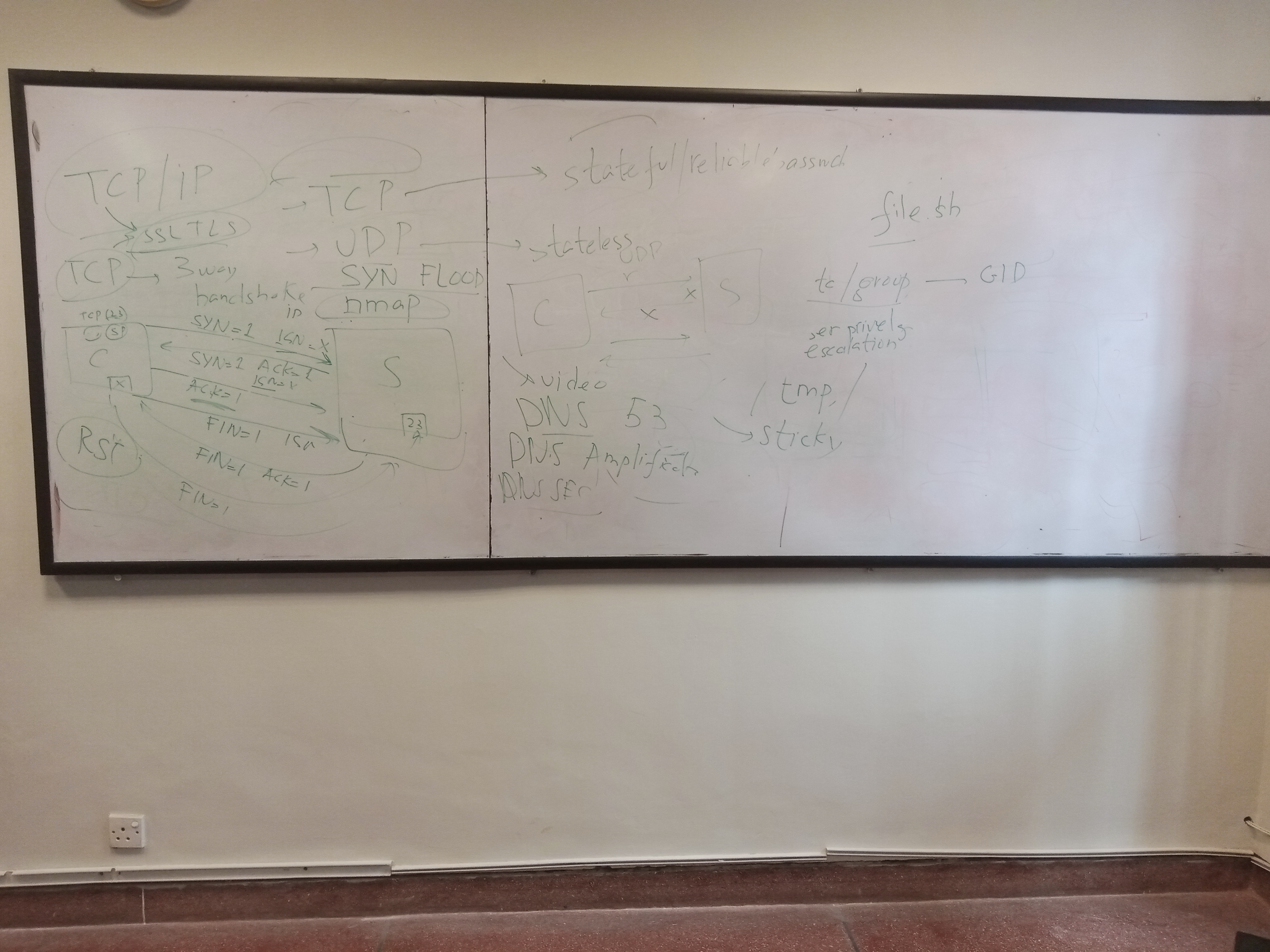
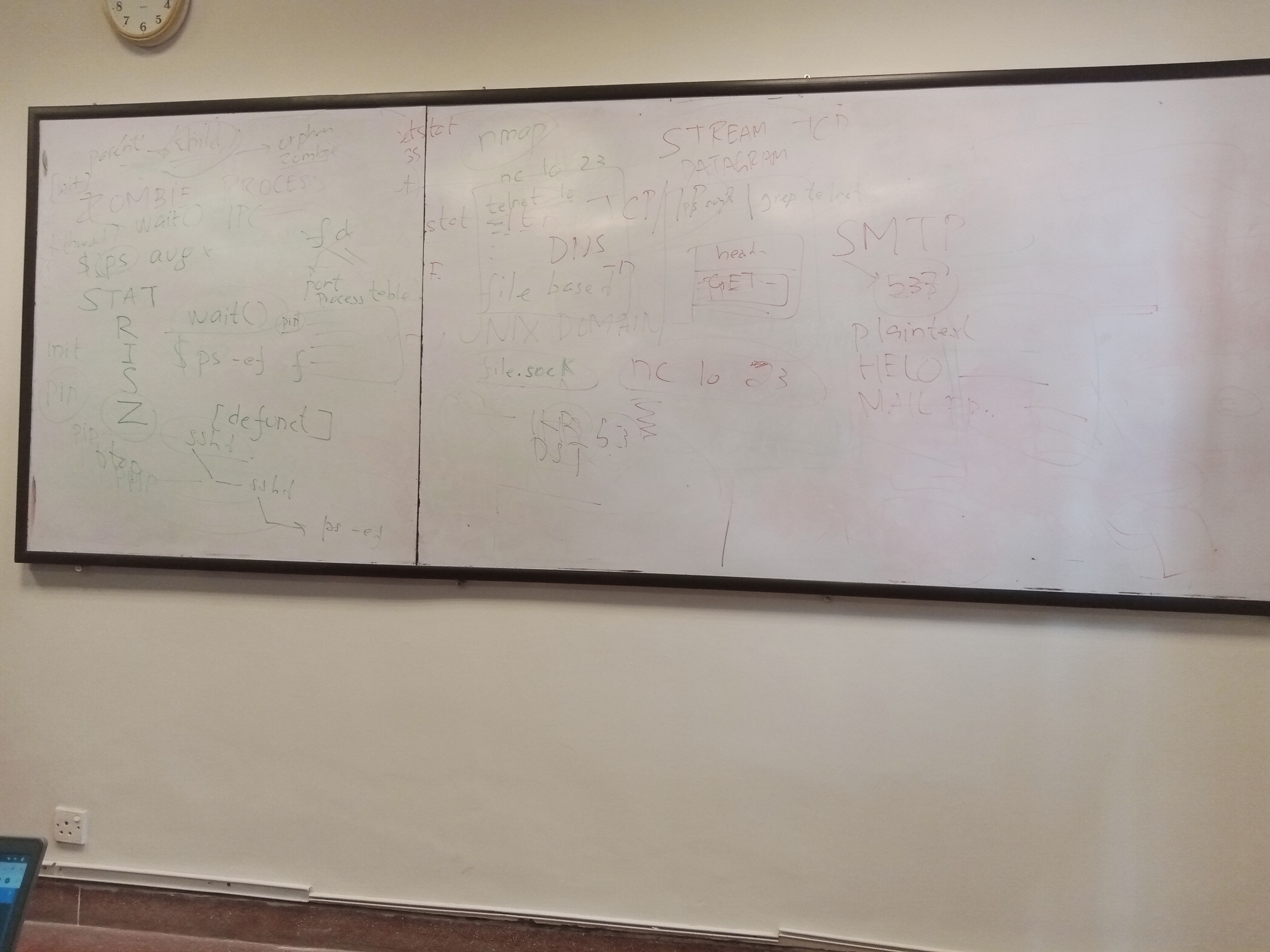
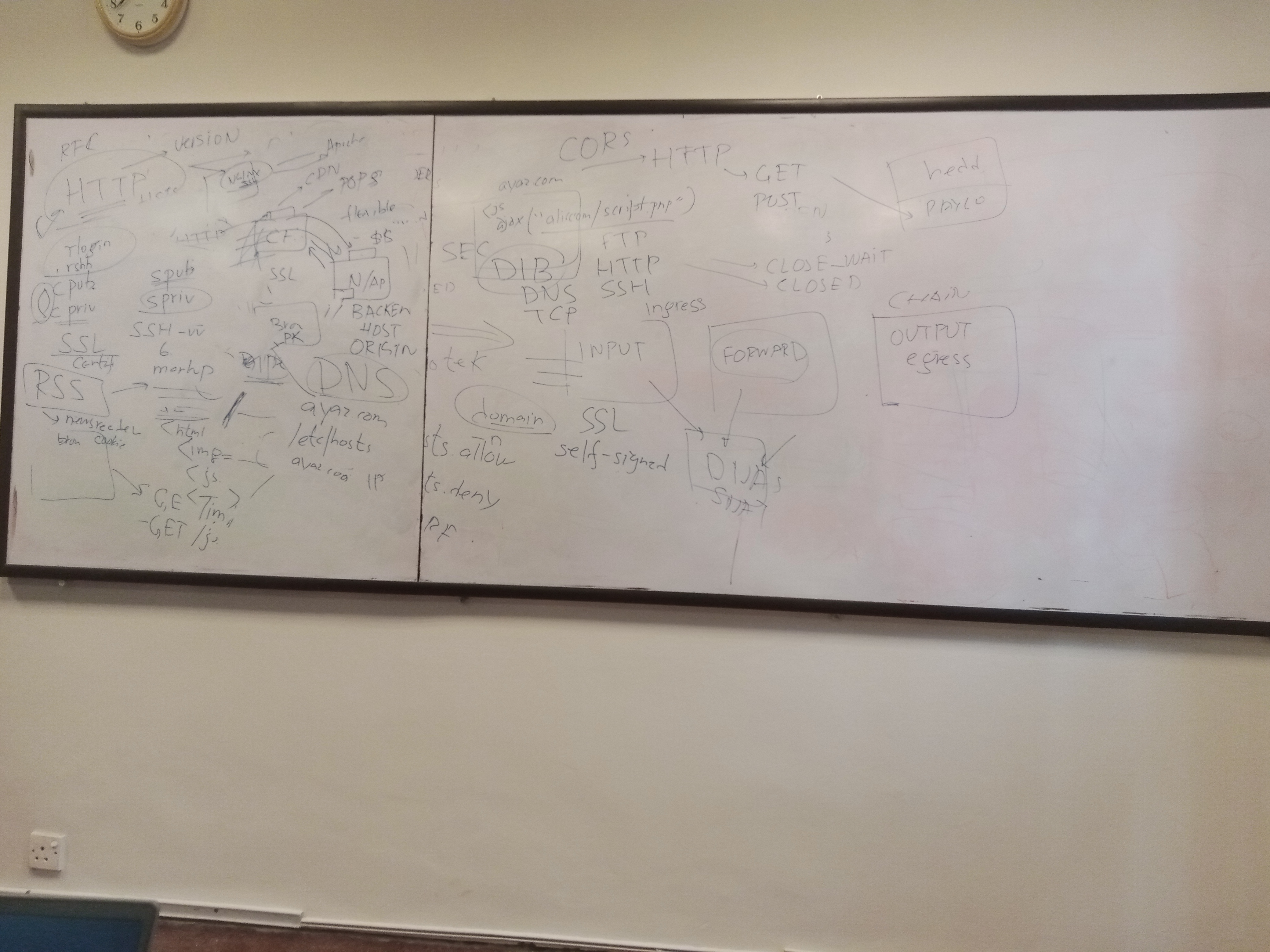
Online Learning Notes:
Week 6 Journal: Chapter 1 - Getting Started with Linux Networking and Troubleshooting
Course Overview:
In the introduction to the “Linux Networking and Troubleshooting Deep Dive” course, Michael provides a comprehensive overview of the course content and structure. Here’s what I learned:
Sections of the Course:
Network Concepts: This section covers fundamental network concepts, starting with the network interface and then moving on to network topology, OSI layers, anatomy of an IP, network flow, routing, ARP, DNS, TCP three-way handshake, and VPN.
Machine Level Configuration: In this section, we delve into machine-level configurations, including network interface configuration, static vs. DHCP addressing, multiple IPs on the same NIC, multiple NICs with the same IP, routing, static routes, routing troubleshooting, and DNS configuration.
Administrator Services and Tools: Here, we explore firewalls, IP tables, firewalld, connection testing, packet captures, and analysis tools.
Advanced Use Cases: The course concludes with advanced topics such as port-forwarding, SSH tunneling, proxy servers (using Squid), load balancing (HAProxy and Nginx), VPN implementation (OpenVPN), and Intrusion Detection Systems (IDS) with Snort.
Learning Approach:
- The course emphasizes a hands-on learning approach with numerous learning activities that align closely with the lessons.
- Examples include mapping IP addresses to MAC addresses, mapping domain names to IP addresses, analyzing the TCP handshake through packet captures with Wireshark, and understanding the processing of IP tables chains.
- By the end of the course, learners will develop a strong understanding of network architecture, subnetting, VPN implementation, firewall configurations, and load balancing.
Conclusion:
The course promises to provide a comprehensive understanding of Linux networking and troubleshooting concepts, equipping learners with practical skills to implement and manage networking solutions effectively. With a focus on hands-on learning activities, learners can expect to gain valuable experience and knowledge to tackle real-world networking challenges confidently.
Week 6 Journal: Chapter 2 - Machine Interface and Network Information Tools
Overview:
In this lesson, Michael provides a detailed explanation of network information available on a host using various tools such as ifconfig, IP, and NMCLI. Here’s what I learned:
Essential Network Information:
- MAC Address: A unique fingerprint of the network interface used for routing data to unique devices.
- IP Address: Unique address of the device on the network.
- Netmask or Subnet: Contextual information applied to the IP address, separating it into network and host addresses.
- Gateway: Host connection to outside the local area network.
- DNS Server: Resolves hostnames into IP addresses.
- DNS Domain: Defines the domain and simplifies hostname resolution.
Commands Used:
- ifconfig: Displays network interface information, including IP address, netmask, MAC address, and packet transmission statistics.
- IP (ip addr): Provides similar information to ifconfig but in a more structured format, including IPv6 details and CIDR notation.
- NMCLI: Displays network interface information along with DNS configuration, default route, and routing table.
- Route (ip route show, routel): Shows the routing table, including the default route and gateway.
Conclusion:
By using ifconfig, IP, NMCLI, and route commands, I learned how to locate and identify essential network information such as IP address, subnet, gateway, and DNS lookup details. Understanding this information provides context for further lessons in the course, setting the foundation for deeper exploration into networking concepts and troubleshooting.
Week 6 Journal: Chapter 3 - Basic Network Topology (Video Lecture 1)
Overview:
In this lesson, Michael provides an overview of basic network topology and connectivity, focusing on the roles of switches and routers. Here’s what I learned:
Switching and Routing:
- Switches: Facilitate internal network traffic by forwarding packets within the local area network.
- Routers: Facilitate traffic between networks by connecting to upstream networks and serving as gateways to networks outside the local area network.
Path of Data:
- Default Route: The path from the client to the gateway (router) for accessing resources outside the local area network.
- Routing: Data requests traverse the default route to connect to the internet, passing through multiple routers and networks before reaching the final destination.
- Trace Route Command: Used to visualize the path (hops) taken by data packets from the source to the destination.
Network Communication:
- Inter-Network Communication: Hosts within different networks communicate through routers connected to each network.
- Message Delivery: Messages contain payload, destination address, return address, and network card addresses for routing and delivery.
- Cloud Network: Utilizes software-defined networking for virtualized network infrastructure, abstracting traditional physical network architecture.
Conclusion:
This lesson provided a foundational understanding of network topology, emphasizing the roles of switches and routers in facilitating internal and inter-network communication. In upcoming lessons, we will delve deeper into addressing, routing, and the mechanics of data transmission through the network.
Week 6 Journal: Chapter 3 - OSI Layers (Video Lecture 2)
Overview:
In this lesson, Michael delves into the OSI (Open Systems Interconnection) model, outlining the importance of understanding its seven layers in networking. Here’s a breakdown of what I learned:
OSI Model Overview:
- Concept: The OSI model is a conceptual framework that standardizes communication functions in telecommunication or computing systems, partitioning a communication system into abstraction layers.
- Layers: The OSI model consists of seven layers, each serving specific functions in data transmission and communication.
OSI Layers and Functions:
- Application Layer (Layer 7): Interfaces with users, permitting data exchange through clients and applications.
- Presentation Layer (Layer 6): Converts application data into a universal format.
- Session Layer (Layer 5): Manages session establishment, maintenance, and termination between processes.
- Transport Layer (Layer 4): Defines data transmission methods, providing validation and security.
- Network Layer (Layer 3): Determines the best path to reach the destination, based on IP addresses.
- Data Link Layer (Layer 2): Handles communication between adjacent nodes, utilizing MAC addresses.
- Physical Layer (Layer 1): Facilitates bit-level transmission between network nodes, handling physical connections.
Examples and Protocols:
- Conceptual Examples: Illustrate the function of each layer using real-world scenarios, such as placing an order over the telephone.
- Actual Examples: Highlight protocols and technologies associated with each layer, including HTTP, TCP, IP, Ethernet, and more.
Troubleshooting with OSI Layers:
- Verification Steps: Michael provides troubleshooting guidelines for each OSI layer, addressing issues related to application functionality, port blocking, routing configuration, VLAN settings, physical connections, etc.
Conclusion:
This lesson deepened my understanding of the OSI model and its significance in networking. By comprehending the functions of each layer and associated protocols, I gained insights into troubleshooting network issues effectively. I look forward to applying this knowledge in practical scenarios and further exploring OSI layers in upcoming lessons.
Week 6 Journal: Chapter 3 - Anatomy of an IP Address (Video Lecture 3)
Overview:
In this lesson, Michael provides an in-depth exploration of IP addresses, covering both IPv4 and IPv6, as well as subnetting and network address translation (NAT). Here’s a breakdown of the key points discussed:
Anatomy of an IP Address:
- IPv4 Address: A 32-bit number divided into four 8-bit sections (octets), each ranging from 0 to 255. IP addresses allow devices to communicate on a network, with each address being unique within its network.
- IPv6 Address: A 128-bit hexadecimal number divided into eight 16-bit sections, separated by colons. IPv6 addresses offer a significantly larger range compared to IPv4.
- Classful Networking: Traditional classful networks (Class A, B, C, D, and E) allocate different portions of the IP address for network and host identification, with specific address ranges reserved for special use cases.
- Subnetting: Subnetting involves dividing a network into smaller subnetworks, allowing for more efficient allocation of IP addresses. CIDR (Classless Inter-Domain Routing) provides flexibility in defining network sizes.
- IPv6 Address Types: IPv6 addresses include Global Unicast (routable on the internet), Unique Local (non-routable for internal networks), and Link Local (restricted to a network link).
Network Address Translation (NAT):
- NAT is a method of remapping IP addresses, allowing devices within a private network to communicate with the internet using a single public IP address.
- NAT translates the network address information in the IP header of packets while they are in transit across the routing device.
- NAT facilitates the accessibility of internal network resources, such as web servers, from the internet by mapping internal IP addresses to a public IP address.
Conclusion:
This lesson expanded my understanding of IP addressing, subnetting, and network address translation. By dissecting the anatomy of IPv4 and IPv6 addresses and exploring the principles of subnetting and CIDR notation, I gained insights into optimizing network resources and addressing schemes. Additionally, the explanation of NAT clarified its role in enabling connectivity between internal networks and the internet. I look forward to applying these concepts in practical networking scenarios.
Week 6 Journal: Chapter 4 - Network Flow
Routing and Routing Tables
Introduction
In this lesson, we explore routing and routing tables, essential components that facilitate network communication.
Router Basics
A router operates at Layer 3 (network layer) of the OSI model and forwards packets between networks.
Routing Table
The routing table is a static mapping of the best path to a network destination, listing destinations, gateways, netmasks, and other parameters.
Example Routing Table
| Destination | Gateway | Netmask | Flags | Metric | Ref | Use | Iface | |————-|————-|————-|——-|——–|—–|—–|——-| | 0.0.0.0 | 172.31.96.1 | 0.0.0.0 | UG | 0 | 0 | 0 | eth0 | | 172.31.69.0 | 0.0.0.0 | 255.255.255.0 | U | 0 | 0 | 0 | eth1 |
Static Routes
Static routes are manually configured routes used for traffic that should not or must not go through the default gateway.
Border Gateway Protocol (BGP)
BGP is a routing protocol used to route traffic across the internet, sitting on top of TCP and enabling true multi-homing of corporate networks.
Conclusion
- Routers connect different networks.
- Routing information is stored in routing tables.
- Static routes are used for specific connections.
- BGP enables internet routing.
This lesson provides essential insights into routing mechanisms and protocols, crucial for understanding network connectivity.
Address Resolution Protocol (ARP)
Introduction
In this lesson, we delve into the definition and understanding of ARP (Address Resolution Protocol) requests and their significance in networking.
ARP Overview
ARP is a communication protocol utilized for discovering the MAC address associated with a given IP address on a network.
Network Data Transmission
Data transmission in networks involves the creation of both Layer 3 (network layer) and Layer 2 (data link layer) headers, containing source and destination IP addresses and MAC addresses, respectively.
ARP Request
When the MAC address corresponding to an IP address is unknown, an ARP request is broadcasted across the network to obtain the necessary mapping.
Example Scenario
In a two-node network, hosts exchange ARP requests to determine each other’s MAC addresses, enabling communication.
Viewing ARP Table
Network devices maintain ARP tables, dynamically updated with IP-MAC address mappings, which can be viewed using commands like ip n.
Conclusion
- ARP maps Layer 3 IP addresses to Layer 2 MAC addresses.
- ARP requests are essential for local area network communication.
- ARP tables are dynamically updated and can be viewed using appropriate commands.
This lesson provides fundamental insights into ARP requests and their role in network communication.
Understanding DNS
Introduction
In this lesson, we explore DNS (Domain Name Service), its role in networking, and how it facilitates the mapping of domain names to IP addresses.
DNS Overview
DNS, or Domain Name Service, enables the usage of domain names instead of IP addresses for addressing at the application level. It operates as a Layer 7 communication protocol, facilitating the mapping of domain names to IP addresses on the network.
How DNS Works
DNS functions through a hierarchical resolution process, starting with a query from a computer seeking to resolve a fully qualified domain name (FQDN) to an IP address. The query progresses through root servers, top-level domain (TLD) servers, domain name servers, and potentially additional authoritative DNS servers until the IP address is resolved.
DNS Resolution Sequence
- Resolution of the root domain (e.g., “.”), handled by root servers.
- Resolution of the TLD (e.g., “.com”), managed by TLD servers.
- Resolution of the specific domain (e.g., “example.com”), handled by domain’s name servers.
- Resolution of any subdomains (e.g., “www”), potentially by authoritative DNS servers within the domain’s zone.
Example DNS Query
An example DNS query can be executed using the dig command, specifying the domain name and record type (e.g., A record for IPv4 addresses). The command provides the resolved IP addresses for the domain.
Tracing DNS Resolution
Using dig with the +trace option allows tracing the complete path followed by the DNS query, from root servers to the final resolution.
Conclusion
- DNS maps domain names to IP addresses, facilitating network communication.
- The resolution process involves root servers, TLD servers, domain name servers, and potentially authoritative DNS servers.
- DNS queries can be executed using tools like
dig, providing insights into the resolution path.
This lesson offers a comprehensive understanding of DNS and its critical role in networking.
Understanding the TCP Handshake
Introduction
In this lesson, we delve into the TCP handshake, an essential process for establishing connections between hosts in a network.
TCP Overview
TCP (Transmission Control Protocol) operates at Layer 4 of the OSI model, alongside UDP. It ensures highly reliable connections through Positive Acknowledgement with Retransmission (PAR), where data is re-sent if acknowledgments are not received.
TCP Segments
Data in TCP is encapsulated into segments, each containing a checksum for verification upon receipt. Segments are then encapsulated into packets, and packets into frames for transmission over the network.
TCP Handshake Process
The TCP handshake involves a three-way communication between two hosts, typically referred to as Host A and Host B.
- SYN Request: Host A initiates the connection by sending a SYN (synchronize) request to Host B.
- SYN ACK Response: Host B responds with a SYN ACK (synchronize acknowledgment) message, indicating acknowledgment of the SYN request.
- ACK Request: Host A sends an ACK (acknowledgment) request to confirm receipt of the SYN ACK and starts sending data.
Detailed Handshake
- SYN Request: Sent from Host A to Host B, indicating the initiation of the connection.
- SYN ACK Response: Host B acknowledges the SYN request and sends a SYN ACK back to Host A.
- ACK Request: Host A acknowledges the SYN ACK and sends an ACK back to Host B, indicating the completion of the handshake.
- Data Transmission: Host A begins sending data after the handshake is completed.
TCP Handshake Example
An example of the TCP handshake can be observed using network monitoring tools like Wireshark, where SYN, SYN ACK, and ACK packets are exchanged between hosts.
Packet Analysis
- SYN Request: Sent from Host A to Host B, with SYN flag set.
- SYN ACK Response: Host B responds with a SYN ACK, acknowledging the SYN request and setting the SYN and ACK flags.
- ACK Request: Host A acknowledges the SYN ACK and sends an ACK back to Host B, confirming the handshake completion.
- Data Transmission: After the handshake, data transmission begins.
Conclusion
TCP handshake is a crucial process for establishing reliable connections between hosts in a network. Understanding the handshake process and analyzing packets exchanged during the process is essential for network troubleshooting and optimization.
This lesson provides a comprehensive overview of the TCP handshake and its significance in networking.
Understanding Data Movement in Networks
Introduction
In this lesson, we’ll consolidate our understanding of network data movement by exploring the sequence of events involved in establishing connections and examining real-world packet captures using Wireshark.
Connection Sequence
Before data transmission can occur, several steps are taken:
- DNS Query: Client requests the IP address for a hostname.
- ARP Request: If necessary, a request is made to resolve the MAC address.
- TCP Handshake: Three-way handshake is initiated for TCP connections.
- Data Transmission: Connection is established for data exchange.
Protocol Selection
While TCP ensures reliable connections through acknowledgment and retransmission, UDP provides a faster but less reliable stream of data, suitable for real-time applications like video streaming and gaming.
Packet Captures Analysis
Let’s examine packet captures to understand the network data flow:
DNS Query Example
- Query: Client requests the A record for a hostname (e.g., linuxacademy.com).
- Response: DNS server responds with the IP address.
Three-Way Handshake
- SYN Request: Initiating host sends a SYN request to establish connection.
- SYN ACK Response: Receiving host acknowledges the SYN request.
- ACK Request: Initiating host acknowledges the SYN ACK, and data transmission begins.
Real-world Examples
- Webpage Loading: ARP request, DNS query, SYN request, data transmission, and HTTP response.
- SSH Connection: DNS query, ARP request, SYN request, SSH protocol exchange, and connection establishment.
- HTTP Request: DNS query, ARP request, SYN request, data transmission, and HTTP response.
Retransmission Handling
Duplicate acknowledgments are sent in case of missed responses, triggering retransmission of data to ensure reliability.
Conclusion
Understanding the sequence of events involved in data movement through networks is crucial for troubleshooting and optimizing network performance. Analyzing packet captures provides insights into the underlying protocols and their interactions.
This lesson integrates theoretical concepts with practical examples, enhancing comprehension of network data movement processes.
Understanding VPNs
Introduction
In this lesson, we’ll explore the concept of Virtual Private Networks (VPNs) and their various use cases.
What is a VPN?
A VPN, or Virtual Private Network, extends a private network across a public network like the internet, enabling encrypted and secure communication between remote clients and sites.
Use Cases
- Securing Private Network Traffic: Protecting sensitive data transmitted over insecure public networks, such as when working from a coffee shop.
- Remote Access to Corporate Resources: Allowing remote employees to securely access internal corporate resources from home or elsewhere.
- Connecting Separate Private Networks: Establishing connections between separated private networks, such as corporate offices or branches.
Types of VPNs
Site-to-Site VPN
- Connects two separate private networks, allowing them to communicate securely over the internet.
- Requires VPN routers on both ends with appropriate routing table entries.
Remote Access VPN
- Allows a single computer (remote access client) to connect securely to a private network from a remote location.
- Commonly used by employees to access corporate resources using VPN clients and credentials provided by the company.
VPN Tunneling
VPN connectivity is secured through a VPN tunnel, which encapsulates and encrypts network data for transmission.
- Tunneling: Encapsulation of one protocol within another, e.g., sending TCP/IP traffic over the internet.
- Tunnel Management Protocol: Negotiates tunnel configuration variables like address assignment, encryption, and compression.
- Data Transfer: Client appends tunnel data transfer protocol header, sends encapsulated data to server, which decrypts and forwards it to the destination network.
Conclusion
VPNs play a crucial role in ensuring secure communication over public networks, whether for remote access to corporate resources or connecting separate private networks. While this overview provides a conceptual understanding, future learning activities may delve deeper into VPN implementation and management.
Week 6 Journal: Chapter 5 - Network Interface
Understanding DHCP and Static IP Addressing
Introduction
In this lesson, we’ll delve into the differences between dynamically-allocated IP addresses through DHCP and setting a static IP. Let’s explore.
DHCP vs. Static IP
- Static IPs: Dedicated, unchanging IP addresses assigned to devices.
- Dynamic IPs: Assigned from a pool of IP addresses by a DHCP server.
Considerations
- Static IPs: Used for important network devices requiring absolute connectivity.
- Dynamic IPs: Ideal for hosts and clients requiring transient connections.
DHCP Leases
- DHCP server grants a lease on an IP address for a period.
- DHCP request and offer are layer 2 broadcasts, using UDP ports 67 and 68.
- Lease sequence: Discover, Offer, Request, Acknowledge.
Setting Static IPs
- Requires providing IP address, netmask, gateway IP, and optional DNS information.
- Can be set using command-line tools like
nmclion Linux systems.
Example:
- Modify network connection to set static IP using
nmcli. - To switch back to DHCP, revert the settings and restart the connection.
Conclusion
- DHCP simplifies IP address management for large networks but introduces potential points of failure.
- Static IPs provide reliability but require manual configuration.
- Understanding DHCP and static IP addressing is essential for network administration and troubleshooting.
This lesson provides a comprehensive overview of DHCP and static IP addressing, including practical examples and considerations.
Understanding Multiple IP Addresses per Host
Introduction
In this lesson, we’ll explore the concept of having multiple IP addresses assigned to a single network interface on a host. This configuration offers flexibility for various purposes such as IP segregation, hosting multiple services, or providing fault tolerance.
Common Configuration
- Typically, one IP address is allocated to one interface on a host.
Other Configurations
- Multiple IPs on the Same Network: Assigning multiple IPs to the same interface.
- Same IP across Different Interfaces: Useful for additional throughput or fault tolerance.
- Multiple Interfaces with Multiple IPs: Common in setups like Linux routers.
Adding Extra IPs on the Same Interface
Let’s demonstrate how to add extra IPs on the same network interface using nmcli.
Example:
- Use
nmclito modify the network connection and add additional IPs. - Bounce the interface to apply changes.
- Verify the new IPs using ping from another host.
Conclusion
- Multiple IPs can be assigned to a single network interface for various purposes.
- Additional connections can be created to consume these IPs.
- Adding additional IPs to existing network connections offers flexibility and scalability.
This lesson provides a practical demonstration of adding multiple IPs to the same network interface, offering insights into network configuration and management.
NIC Teaming and Bonding
Introduction
In this lesson, we delve into NIC teaming and bonding, exploring how multiple interfaces can be configured to respond to a single IP address. These configurations are often utilized for fault tolerance, although they can also offer additional throughput, load balancing, link aggregation, and broadcasting capabilities.
Use Cases
- Fault Tolerance: Providing redundancy in case of NIC failure.
- Additional Throughput: Utilizing multiple interfaces to increase bandwidth.
- Load Balancing: Distributing network traffic across multiple interfaces.
- Link Aggregation: Combining multiple links to increase throughput.
Teaming vs. Bonding
- Teaming: Offers advantages such as IPv6 link monitoring, support for LACP, and integration with Network Manager tools.
- Bonding: Works in virtual environments and requires its own kernel module.
Example: Bonding
- Setup: Using nmcli to configure bonding on Ubuntu VM with CentOS server for verification.
- Steps:
- Adding a bond connection with active backup mode and assigning an IP address.
- Adding slave interfaces to the master bond connection.
- Configuring gateway and bringing up the interface.
- Verification through ping and network status checks.
Example: Teaming
- Setup: Creating a teamed interface on a Linux Academy cloud server.
- Steps:
- Installing teamd and preparing network interfaces.
- Creating a team connection with active backup mode.
- Adding slave interfaces to the team and configuring IP settings.
- Bringing up the interface and verifying its status.
Conclusion
- Teaming and bonding provide essential redundancy and scalability in network configurations.
- Teaming is preferred for physical hardware setups, while bonding may be more suitable for virtual environments.
- Understanding default behaviors and configurations is crucial for successful implementation.
This comprehensive lesson covers the intricacies of NIC teaming and bonding, offering practical examples and insights for network administrators. Thank you for watching.
Week 6 Journal: Chapter 6 - Routing
Static Routing Deep Dive
Introduction
In this lesson, we explore static routes in depth, focusing on their configuration and usage on a CentOS 7.5 server. Static routes are essential for directing network traffic and can be used not only to make destinations reachable but also to make them unreachable.
Deprecated Commands
- Note: The
routecommand is deprecated; it is recommended to useip route showorip rinstead.
Prohibiting Access
- Prohibiting Routes: Static routes can be used to prohibit access to specific destinations.
- Example: Using
ip route add prohibit 1.1.1.1to block access to CloudFlare’s DNS server. - Persistence: Changes are not persistent across system restarts; modification of static routing files may be necessary for persistence.
Customizing Routes
- Route Configuration: Routes can be customized to specify the interface for outgoing traffic.
- Example: Adding a route for traffic to 1.1.1.1 to go via eth0:
ip route add 1.1.1.1 via <gateway> dev eth0. - Troubleshooting: Asymmetrical routing issues may arise; resolving connectivity issues is crucial for proper routing.
Breaking Routes
- Breaking Routes: Demonstrating how static routes can break connectivity.
- Example: Adding a route for traffic to 1.1.1.1 to go via an arbitrary gateway (10.0.1.20).
- Troubleshooting: Understanding routing tables and network architecture helps in resolving connectivity issues.
Persistence and Maintenance
- Persistence: For persistent routes, modify or create static routing files in
/etc/sysconfig/network-scripts. - Example: Editing
route-eth0to make static routes persist across system restarts.
Conclusion
Static routing provides granular control over network traffic, allowing administrators to define specific routes for optimal connectivity. Understanding static routes is essential for troubleshooting network issues and optimizing network performance.
Troubleshooting Routing Issues in Linux
Introduction
In this lesson, we delve into troubleshooting routing issues in Linux. Routing issues commonly arise during network setup or due to configuration errors. Traditional tools like traceroute and ping may not provide sufficient information for troubleshooting. We’ll focus on local routing table-level troubleshooting for the scope of this lesson.
Customizing Routes
- Routing Table Entries: Routes can be configured to go through specific network interfaces.
- Example: Setting all traffic to a specific host to go through a designated NIC using
ip route add. - Testing: Verify connectivity by pinging and specifying the interface.
- Routing Table Inspection: Use
ip route showto inspect the routing table.
Handling NIC Failures
- Simulating NIC Failure: Simulate NIC failure by bringing down the interface.
- Impact on Connectivity: NIC failure affects routing; traffic falls over to other available interfaces.
- Persistence: Routes defined in configuration files may be restored when the interface comes back online.
Troubleshooting Examples
- Inspecting Routing Table: Identify unnecessary or misconfigured routing entries.
- Using Host Command: Resolve IP addresses to hostnames using
hostcommand. - Removing Problematic Routes: Use
ip route delto remove problematic routes causing connectivity issues.
Best Practices and Considerations
- Good Design Practices: Routes should align with network design and be necessary for connectivity.
- Scope Limitations: Troubleshooting is limited to local routing tables; other issues like policy-based routing are beyond this lesson’s scope.
- External Factors: Considerations like VPNs and organization-specific routing policies may impact troubleshooting.
Conclusion
Understanding and troubleshooting routing issues is crucial for maintaining network connectivity in Linux environments. By inspecting routing tables, resolving misconfigured routes, and adhering to good design practices, administrators can ensure optimal network performance.
Week 6 Journal: Chapter 7 Domain Name Service (DNS)
Local Domain Resolution in Linux
Introduction
In this lesson, we explore local domain resolution in Linux, focusing on modifying the nsswitch.conf file and /etc/hosts to customize domain resolution. We’ll use the bind-utils package and tools like host, getent, and curl to demonstrate the process.
Installing Tools
- Installing Bind Utilities: We begin by installing
bind-utilspackage for DNS-related utilities.
Use Case
- Scenario: Consider a scenario where developers on an application host prefer testing without modifying domain names directly in the code.
- Objective: Achieve local domain resolution without relying on DNS.
Modifying Resolution
- Inspecting Domain: We inspect the domain
latoys.comusinghostandgetent. - Modifying /etc/hosts: Add a custom entry for
latoys.compointing to a local IP in/etc/hosts. - Testing Resolution: Verify resolution using
getent,host, andcurl. - Reversing Resolution Order: Modify
nsswitch.confto prioritize DNS over files for resolution. - Testing Again: Verify resolution after changing resolution order.
Additional Use Cases
- Mirroring Websites: Utilize local resolution to mirror websites locally for testing purposes.
- Example: Mirror
example.comlocally usingwgetand modify/etc/hoststo resolve it locally. - Testing: Verify the mirrored website using
curland text browsers likelinks.
Conclusion
Customizing local domain resolution in Linux provides flexibility for testing and development purposes. By modifying nsswitch.conf and /etc/hosts, administrators can achieve custom domain resolution without relying solely on DNS. In the next lesson, we’ll explore setting up a name server for more robust domain resolution configurations.
Local Domain Resolution in Linux
Introduction
In this lesson, we explore local domain resolution in Linux, focusing on modifying the nsswitch.conf file and /etc/hosts to customize domain resolution. We’ll use the bind-utils package and tools like host, getent, and curl to demonstrate the process.
Installing Tools
- Installing Bind Utilities: We begin by installing
bind-utilspackage for DNS-related utilities.
Use Case
- Scenario: Consider a scenario where developers on an application host prefer testing without modifying domain names directly in the code.
- Objective: Achieve local domain resolution without relying on DNS.
Modifying Resolution
- Inspecting Domain: We inspect the domain
latoys.comusinghostandgetent. - Modifying /etc/hosts: Add a custom entry for
latoys.compointing to a local IP in/etc/hosts. - Testing Resolution: Verify resolution using
getent,host, andcurl. - Reversing Resolution Order: Modify
nsswitch.confto prioritize DNS over files for resolution. - Testing Again: Verify resolution after changing resolution order.
Additional Use Cases
- Mirroring Websites: Utilize local resolution to mirror websites locally for testing purposes.
- Example: Mirror
example.comlocally usingwgetand modify/etc/hoststo resolve it locally. - Testing: Verify the mirrored website using
curland text browsers likelinks.
Conclusion
Customizing local domain resolution in Linux provides flexibility for testing and development purposes. By modifying nsswitch.conf and /etc/hosts, administrators can achieve custom domain resolution without relying solely on DNS. In the next lesson, we’ll explore setting up a name server for more robust domain resolution configurations.
Troubleshooting DNS Issues
Introduction
In this lesson, we’ll delve into troubleshooting DNS issues by examining common problems and performing diagnostic steps to identify and resolve them.
Local Troubleshooting
- Check Network Connectivity: Ensure network connectivity by testing SSH and other network-dependent commands.
- Verify
/etc/nsswitch.conf: Check the order of name resolution methods (files, DNS) in the Name Service Switch configuration file. - Review
/etc/hosts: Ensure correct entries in the hosts file for local resolution. - Inspect
/etc/resolv.conf: Verify the configured DNS server(s) in the resolver configuration file. - Test DNS Resolution: Use commands like
digornslookupto test DNS resolution for domain names.
Server Troubleshooting
- Check DNS Server Connectivity: Test connectivity to the configured DNS server(s) using tools like
telnet. - Verify Routing: Check the routing table to ensure proper routing to the DNS server(s).
- Test Forwarding: Ensure DNS server(s) can forward queries to external DNS servers if necessary.
- Switch to Public DNS: Temporarily switch to public DNS servers (e.g., Google DNS, CloudFlare) if internal DNS is unavailable.
- Verify Secondary DNS: Use a secondary DNS server if available to ensure DNS resolution.
Additional Troubleshooting Steps
- Check Authority: Use
digto check if the response is authoritative. - Inspect TTLs: Monitor Time-To-Live (TTL) values to determine cache expiration times.
- Verify Zone Synchronization: Use
digwith+nssearchoption to verify zone synchronization across name servers. - Verify Zone Information: Query the Start of Authority (SOA) record to ensure proper zone configuration.
- Test Subdomains: Verify non-existent subdomains using
digto check for NXDOMAIN responses.
Conclusion
Troubleshooting DNS issues involves a systematic approach to identify and resolve problems affecting DNS resolution. By following the steps outlined in this lesson, you can effectively diagnose and fix DNS-related issues, ensuring reliable name resolution for your network.
Week 6 Journal: Chapter 8 Firewalls
Understanding Firewalls
Introduction
In this lesson, we’ll explore the fundamentals of firewalls, their functionality, and implementation on Linux systems.
What is a Firewall?
A firewall is a security measure that controls incoming and outgoing network traffic based on predefined security rules. It acts as a barrier between a trusted internal network and untrusted external networks, filtering traffic to prevent unauthorized access and malicious activities.
Functionality of Firewalls
- Packet Filtering: Examines packets and determines whether to allow or block them based on predefined rules.
- Connection Tracking: Maintains state information about active connections, enabling stateful packet inspection for improved security.
- Network Address Translation (NAT): Translates IP addresses and ports to facilitate communication between different network segments.
- Port Translation: Redirects traffic from one port to another, enabling services to be accessible on non-standard ports.
- Packet Manipulation: Allows for packet modification, such as altering headers or payload contents.
Netfilter and Firewall Implementation
- Netfilter: A framework provided by the Linux kernel for packet filtering and manipulation.
- iptables: A command-line utility for configuring Netfilter rules, controlling packet filtering and NAT.
- firewalld: A dynamic firewall management tool that abstracts firewall configuration and provides a higher-level interface for managing rules.
Example of Firewall Usage
- Initial Setup: Start with a host running services like SSHD, HTTP, and BIND.
- Enable Firewall: Activate the firewall to restrict incoming and outgoing traffic by default.
- Configure Rules: Define specific rules to allow desired traffic, such as permitting port 22 (SSH) or port 80 (HTTP).
- Verification: Test connectivity to ensure allowed services are accessible while blocked services are denied.
- Troubleshooting: Use tools like tcpdump or Wireshark to analyze network traffic and identify firewall-related issues.
Conclusion
Understanding firewalls is crucial for network security and administration. By grasping the principles behind firewalls, their functionality, and implementation methods, you can effectively manage network access and safeguard your systems against unauthorized access and threats.
Understanding iptables
Introduction
In this lesson, we’ll delve into iptables, a powerful firewall utility on Linux systems. We’ll explore its tables, chains, rules, and connection tracking capabilities.
Tables in iptables
- Filter Table: Most common table used for packet filtering to determine if a packet should continue or not.
- NAT Table: Used for network address translation, modifying source or destination addresses.
- Mangle Table: Alters packet headers for specific modifications like TTL or MTU.
- Raw Table: Used for opting out of connection tracking.
- Security Table: Applies SELinux context on packets or connections.
Hooks and Chains
- Hooks: Provided by netfilter for actions on network activities.
- Chains: Sequences of rules in each table, applied at specific points of packet processing.
- PREROUTING: Before routing decisions.
- INPUT: Before packets are given to local processes.
- FORWARD: For packets routed through the host.
- OUTPUT: After local process produces packets.
- POSTROUTING: Before outbound packets are transmitted.
Rules and Targets
- Rules: Added to chains in tables, with a matching part and a target.
- Targets: Actions to take when a rule matches.
- Terminating targets: End evaluation within the chain.
- Non-terminating targets: Continue evaluation within the chain.
- Example targets: ACCEPT, REJECT, DROP.
Connection Tracking and States
- Connection Tracking: Facilitates stateful packet inspection.
- States: Represent connection dispositions used in matching.
- NEW: First packet of a connection.
- ESTABLISHED: Part of an existing connection.
- RELATED: Related to another established connection.
- INVALID: Packet doesn’t have a proper state.
- UNTRACKED: Exempt from connection tracking.
- Source/Destination NAT: Represents packets with address translation.
Example Usage and Commands
- Viewing connection tracking information:
cat /proc/net/netfilter_conntrackorconntrack -L. - Viewing iptables rules and chains:
iptables -t TABLE -Loriptables -L --line-numbers. - Adding rules to iptables:
iptables -t TABLE -A CHAIN ...oriptables -t TABLE -I CHAIN LINE_NUMBER ....
Conclusion
Understanding iptables is essential for managing network security and traffic filtering on Linux systems. By comprehending its tables, chains, rules, and connection tracking capabilities, administrators can effectively configure and maintain firewalls to protect their systems.
Summary of Firewalld Lecture
- Introduction to Firewalld
- Firewalld is introduced as an alternative to iptables.
- Key feature: Zones, allowing for more flexible firewall configurations.
- Zones in Firewalld
- Default zone is public, with 9 zones packaged in CentOS.
- Each zone represents a level of trust and allows for different firewall rules.
- Zones include drop, block, public, external, internal, DMZ, work, home, and trusted.
- Services in Firewalld
- Services define ports and destinations.
- Services are defined as XML files in /usr/lib/firewalld/services.
- Default services include SSH and DHCPv6-client.
- IPSets in Firewalld
- IPSets are groups of IP or MAC addresses.
- IPSets are user-created and stored as XML files under /etc/firewalld/ipsets/.
- Can be used to define a list of IPs for firewall rules.
- Interacting with Firewalld
- Commands primarily use
firewall-cmd. - Basic commands include listing active zones, adding ports, and adding services.
- Commands primarily use
- Making Changes Persistent
- Use
--permanentflag to make changes persist across reboots. - Without
--permanent, changes only apply to the running configuration.
- Use
- Creating Custom Services
- Custom services can be created using
firewall-cmd --permanent --new-service. - Services defined in XML files under /etc/firewalld/services/.
- Custom services can be created using
- Working with IP Sets
- IP Sets can be added using
firewall-cmd --permanent --new-ipset. - Entries can be added individually or from a file using
--add-entries-from-file.
- IP Sets can be added using
- Creating Zones
- Zones can be created using
firewall-cmd --permanent --new-zone. - Services can be added to zones using
firewall-cmd --permanent --zone=ZONE --add-service=SERVICE. - IP Sets can be associated with zones using
firewall-cmd --permanent --zone=ZONE --add-source=ipset:IPSET.
- Zones can be created using
- Rich Rules
- Rich rules offer granular control over firewall rules.
- Defined using
firewall-cmd --add-rich-rule.
- Considerations and Recommendations
- Firewalld is preferred for most firewall configurations.
- Dual NIC configurations can use direct iptables rules but should be used sparingly and documented carefully.
- Conclusion
- Firewalld offers flexibility and ease of use for firewall configurations.
- Use caution with complex configurations to avoid confusion and maintainability issues.
Summary of Firewall Troubleshooting Lecture
- Introduction to Troubleshooting
- Importance of performing sanity checks before troubleshooting firewall issues.
- Sanity checks include verifying service availability and network connectivity.
- Troubleshooting with iptables
- Example scenario: Client unable to connect to Server1 over port 80.
- Verify iptables running config using
iptables -v -L. - Analyze iptables rules order and make necessary adjustments.
- Avoid disabling firewall or flushing rules in production environments.
- Troubleshooting with Firewalld
- Example scenario: Client unable to connect to Server1 over port 80 with firewalld.
- Use
firewall-cmd --list-allto view running config. - Add rich rules to block or permit traffic based on source address, port, and protocol.
- Pay attention to rich rule ordering and processing.
- Consider leaving subnet blocking rules in place and manage specific sources in different zones.
- Conclusion
- Firewalls are complex subjects requiring careful troubleshooting.
- Understanding firewall configurations, rule order, and processing is essential for effective troubleshooting.
- The lecture provides a foundational understanding of firewall troubleshooting within the context of Linux networking.
Week 6 Journal: Chapter 9 Connection Troubleshooting
Overview of Connection Testing and Troubleshooting
- Introduction
- Connection testing is a critical troubleshooting skill.
- Understanding OSI layers helps frame the testing process.
- Testing Tools by OSI Layer
- Layer 2 (Data Link Layer)
- Use arping to verify MAC level reachability.
- IP neighbor to inspect the ARP table.
- Layer 3 (Networking Layer)
- Ping, traceroute, and tracepath for IP connectivity.
- Layer 4 (Transport Layer)
- Tools like netcat, telnet, tcpdump, and s for testing ports and firewall configurations.
- Layers 5-7 (Application Layer)
- Utilize dig for DNS testing and application-specific tools for syntax validation.
- Layer 2 (Data Link Layer)
- Testing Approach
- Starting from the application layer and working down is a common approach.
- ICMP is often blocked, making ping less reliable for testing.
- Specific Testing Scenarios
- Demonstrated example troubleshooting steps on a broken system.
- Used tools like arping, telnet, tcpdump, and curl for testing and validation.
- Highlighted the importance of understanding network context and utilizing appropriate tools for validation.
Conclusion
- Effective connection testing and troubleshooting involve understanding OSI layers, using appropriate tools, and following a systematic approach to isolate and resolve issues.
Understanding Packet Captures
- Introduction
- Packet captures are essential for troubleshooting and understanding network traffic.
- Packet Capture Basics
- Intercept data between a source and destination.
- Occurs on an interface, observing all traffic flowing through it.
- Capture filters reduce captured data to relevant information.
- Capture Filters vs. Display Filters
- Capture Filters: Reduce raw packet capture size by filtering out unwanted traffic.
- Display Filters: Refine viewing of captured data without altering the capture file.
- Examples of Capture Filters
- Using
tcpdumpandWireshark(ortshark) commands with filters to capture specific traffic. - Filtering out SSH traffic or capturing traffic from specific hosts.
- Using
- Packet Capture Demonstration
- Running
tcpdumpcommands to capture traffic and apply filters. - Generating artificial traffic to analyze using packet captures.
- Opening and analyzing packet captures using Wireshark GUI.
- Running
- Wireshark Analysis
- Applying display filters to analyze DNS queries, HTTP requests, ICMP packets, etc.
- Exploring packet details at different OSI layers for deeper analysis.
- Conclusion
- Packet captures are powerful tools for troubleshooting and understanding network traffic behavior.
- Experimenting with packet captures on home networks and studying existing captures online can enhance understanding.
- Wireshark is a valuable tool for analyzing and interpreting captured network data.
Conclusion
- Packet captures are indispensable for troubleshooting network issues and gaining insights into network traffic behavior. Wireshark, along with command-line tools like tcpdump and tshark, provide robust capabilities for capturing and analyzing network packets.
Week 6 Journal: Chapter 10 Port Forwarding
Understanding Port Forwarding
- Introduction
- Port forwarding is a crucial networking concept for redirecting traffic from one port to another, typically across different network segments.
- Sample Architecture
- A standard setup with an externally accessible web host (Server1) and an internally available host (Server2).
- Server1 (10.0.1.10) is NATed to a public IP and acts as a firewall.
- Server2 (10.0.1.20) is internally accessible only through Server1.
- Preparation Work
- Minimize Complexity:
- Limit configuration variables to reduce complexity.
- Verify connectivity before making configuration changes.
- Change one thing at a time and iterate over the configuration.
- Don’t get frustrated, especially with complex tools like iptables.
- Use Case Example:
- Forwarding traffic from port 8080 on Server1 to Server2 for accessing internal content.
- Minimize Complexity:
- Setup Process
- Verify Apache Installation:
- Check Apache installation on both Server1 and Server2.
- Check Port Availability:
- Verify port 80 availability on Server1 externally.
- Check port 8080 availability on Server1 internally.
- Configure Firewall:
- Open port 8080 on Server1’s firewall using
firewall-cmd.
- Open port 8080 on Server1’s firewall using
- Test Connectivity:
- Install Netcat and listen on port 8080 on Server1.
- Verify connectivity from the desktop to Server1’s port 8080 using Telnet.
- Perform Port Forwarding:
- Once connectivity is verified, set up port forwarding from Server1’s public IP and port 8080 to Server2.
- Verify Apache Installation:
- Conclusion
- Port forwarding is a powerful technique for redirecting traffic in networking environments, enabling access to resources that are not directly reachable from the external network.
- Proper preparation and testing are essential to ensure successful port forwarding implementation.
- Understanding networking fundamentals and tools like iptables or firewall-cmd is crucial for effective configuration and troubleshooting.
Port Forwarding Examples with iptables and firewalld
- Introduction
- This lesson explores port forwarding examples using both iptables and firewalld in a networking environment.
- The architecture consists of Server1 (externally available with NATed internal IP) and Server2 (internally available only), both running Apache.
- Using iptables
- Example 1: Forwarding Port 80 to Port 8080
- Modify Apache to listen on port 8080 instead of port 80.
- Add a rule to iptables PREROUTING chain to redirect incoming port 80 traffic to port 8080.
- Open port 8080 in the INPUT chain to permit incoming traffic.
- Example 2: Complex Port Forwarding
- Forward port 8080 requests to Server2 and port 80 requests to Server1.
- Enable IP forwarding.
- Add NAT rules to forward port 8080 requests to Server2 and masquerade the source IP.
- Add FORWARD chain rules to accept related/established connections and new connections.
- Open port 80 in the INPUT chain to permit incoming traffic.
- Example 1: Forwarding Port 80 to Port 8080
- Using firewalld
- Forwarding Port 80 to Port 8080
- Modify Apache to listen on port 8080.
- Use
firewall-cmdto add a forward port rule to redirect incoming port 80 traffic to port 8080. - Test the configuration by accessing the server over port 80.
- Complex Port Forwarding
- Forward port 8080 requests to Server2 and port 80 requests to Server1.
- Use
firewall-cmdto add forward port rules for port 8080 and port 80. - Remove any extraneous rules and enable masquerading.
- Test the configuration to ensure proper forwarding of traffic.
- Forwarding Port 80 to Port 8080
- Conclusion
- Port forwarding is a powerful networking technique for redirecting traffic to different ports or servers.
- iptables and firewalld provide options for implementing port forwarding, with firewalld offering a more streamlined approach.
- Port forwarding can be used for various purposes beyond web traffic, but it’s essential to consider security implications and limit access appropriately.
- Understanding port forwarding is valuable for managing network resources effectively and overcoming limitations in network configurations.
Week 6 Journal: Chapter 11 - SSH Tunnelling
Introduction to SSH Tunnels
- Overview
- In this lesson, we’ll explore SSH tunnels, their types, and their use cases.
- The architecture consists of two hosts in a VPC, each with its firewall and constraints on network ports.
- Types of SSH Tunnels
- Local Tunnel
- Allows accessing remote content through a local port on the client machine.
- Useful when direct access to the remote server is not possible or restricted.
- Commonly used for accessing databases or internal web servers.
- Example:
ssh -L <local_port>:<remote_host>:<remote_port> user@intermediate_host
- Remote Tunnel
- Makes local content available to a remote server through an intermediate host.
- Useful for showcasing local development to remote colleagues or servers.
- Example:
ssh -R <intermediate_port>:<local_host>:<local_port> user@intermediate_host
- Dynamic Tunnel
- Configures an SSH intermediate host as a proxy for web traffic.
- Useful for accessing internal web content not publicly accessible.
- Acts as a pseudo-VPN, routing all web traffic through the SSH target.
- Example:
ssh -D <proxy_port> user@intermediate_host
- Local Tunnel
- Conclusion
- SSH tunnels provide secure ways to access remote resources or share local content.
- Understanding the types of SSH tunnels and their use cases is essential for network administrators and developers.
Introduction to SSH Tunnels
- Overview
- SSH tunnels provide a secure way to access or share resources across networks.
- In this lesson, we’ll explore different types of SSH tunnels and their use cases.
- The architecture typically involves two hosts within a network, each with its firewall and constraints on network ports.
- Types of SSH Tunnels
- Local Tunnel
- Allows accessing remote content through a local port on the client machine.
- Useful for scenarios where direct access to the remote server is restricted.
- Example:
ssh -L <local_port>:<remote_host>:<remote_port> user@intermediate_host
- Remote Tunnel
- Shares local content with a remote server through an intermediate host.
- Helpful for showcasing local development to remote colleagues or servers.
- Example:
ssh -R <intermediate_port>:<local_host>:<local_port> user@intermediate_host
- Dynamic Tunnel
- Configures an SSH intermediate host as a proxy for web traffic.
- Useful for accessing internal web content not publicly accessible.
- Acts as a pseudo-VPN, routing all web traffic through the SSH target.
- Example:
ssh -D <proxy_port> user@intermediate_host
- Local Tunnel
- Conclusion
- SSH tunnels offer flexibility and security in networking environments.
- Understanding the different types of SSH tunnels and their applications is crucial for network administrators and developers.
SSH Tunnel Examples
- Overview
- In this lesson, we’ll explore practical examples of SSH tunnels, including local, remote, and dynamic tunnels.
- Architecture Review
- Client1, Server1, and Server2 are within the same subnet, but a firewall rule blocks direct access from Client1 to Server2.
- Server2 is not publicly available.
- Local Tunnel Example
- Client1 cannot directly access Server2.
- SSH tunnel created with
ssh -Lfrom Client1 to Server1. - Port 8080 on Client1 tunnels to port 80 on Server2.
- Demonstrates accessing Server2’s content via localhost:8080 on Client1.
- Multiple Local Tunnels
- Client1 creates tunnels for both Server1 and Server2’s content.
- Demonstrates the flexibility of SSH tunnels.
- Remote Tunnel Example
- Firewall rule blocks Server2 from connecting to Client1.
- Remote tunnel created with
ssh -Rfrom Server1 to Client1. - Port 8080 on Server1 tunnels to port 80 on Client1.
- Server2 can now access Client1’s content via Server1.
- Dynamic Tunnel (SOCKS Proxy) Example
- SSH dynamic tunnel created from Ubuntu desktop to Server1 with
ssh -D. - Firefox configured to use localhost:8080 as a SOCKS proxy.
- Demonstrates browsing Server1 and Server2’s content through the SSH tunnel.
- SSH dynamic tunnel created from Ubuntu desktop to Server1 with
- Conclusion
- SSH tunnels provide versatile solutions for accessing or sharing resources securely.
- Understanding and implementing different types of SSH tunnels is essential for network administrators and developers.
Week 6 Journal: Chapter 15 - IDS
Introduction to Intrusion Detection Systems (IDS) and Snort
- Definition of IDS and IPS
- An IDS (Intrusion Detection System) detects intrusion attempts, while an IPS (Intrusion Prevention System) takes action to prevent intrusion by applying security policies.
- IDS observes and logs suspicious activity, while IPS actively blocks or mitigates such activity.
- Sample Architecture
- Typical private network architecture with hosts connected to a gateway/router.
- IDS deployed with additional NIC for tap/span visibility into network traffic.
- Scaling considerations: IDS components can be distributed across a cluster for better performance.
- Introduction to Snort
- Snort is an open-source network intrusion prevention system capable of real-time traffic analysis and packet logging.
- Maintained by Cisco, Snort is widely used and regarded as the de facto open-source IPS.
- Can function as a packet sniffer, packet logger, or full-blown IPS.
- Components of the Snort Ecosystem
- Snort: Foundation for network observation and rule engine.
- Barnyard/Barnyard2: Interpret binary files written by Snort, ensuring efficient disk usage without missing traffic.
- Snorby: Open-source web app frontend for Snort, backed by a database.
- PulledPork: Rule management application for updating Snort rules, ensuring up-to-date protection against exploits and vulnerabilities.
- Installation and Setup
- Installing Snort itself is relatively straightforward, but additional components like Barnyard and Snorby may require more setup and trial/error.
- Compiling from source may be necessary, and documentation may require referencing multiple setup guides.
- Conclusion
- IDS, particularly network intrusion detection, plays a critical role in identifying and mitigating security threats.
- Snort, as an open-source solution, offers robust capabilities for network traffic analysis and intrusion prevention.
- Understanding and configuring the components of the Snort ecosystem is essential for effective deployment and management.
Installation and Configuration of Snort as an IDS
Architecture Overview
- Snort is installed on Server1 (10.0.1.10) with a public IP.
- The internal network includes a client (10.0.2.x) and a bad actor host (10.0.4.10).
- Snort will monitor traffic for any interaction with the bad actor host.
Installation Steps
- Install EPEL and libdnet:
- Use
yum install -y epel-releaseand install libdnet.
- Use
- Install Snort and DAQ:
- Download DAQ and Snort from their respective websites and install.
- Create Symlink for libdnet:
- Create a symlink from
/usr/lib64/libdnet.so.1.0.1to/usr/lib64/libdnet.1.
- Create a symlink from
- Download Community Rules:
- Use wget to download community rules and extract them.
- Configure Snort:
- Edit
/etc/snort/snort.conf:- Set
RULE_PATHto/etc/snort/rules. - Comment out whitelists/blacklists and reputation preprocessor.
- Set output logging to
log_unified2. - Define rules referencing community rules and local rules.
- Set
- Edit
- Create Local Rules File:
- Create
/etc/snort/rules/local.rulesand define custom rules.
- Create
- Restart Snort:
- Restart the snortd service.
- Testing:
- Test rules by generating traffic (e.g., curl requests).
- Check
/var/log/snort/alertfor alerts generated by Snort.
Conclusion
- Snort provides powerful intrusion detection capabilities.
- Rules can be customized to detect specific types of network activity.
- Additional components like Barnyard2, Snorby, and PulledPork can enhance Snort’s functionality.
- Community rules provide additional protection, effectively turning Snort into a partial IPS.